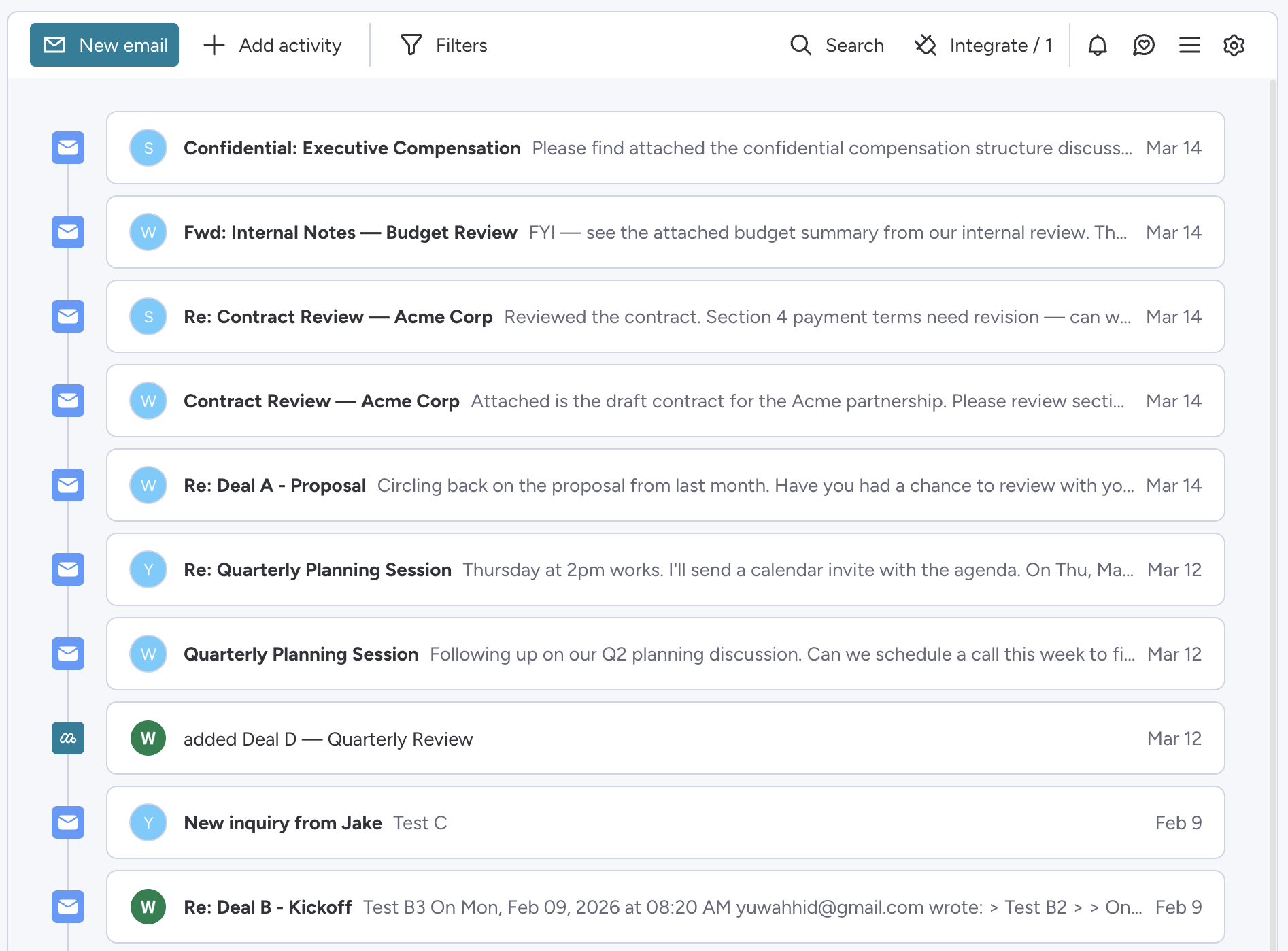
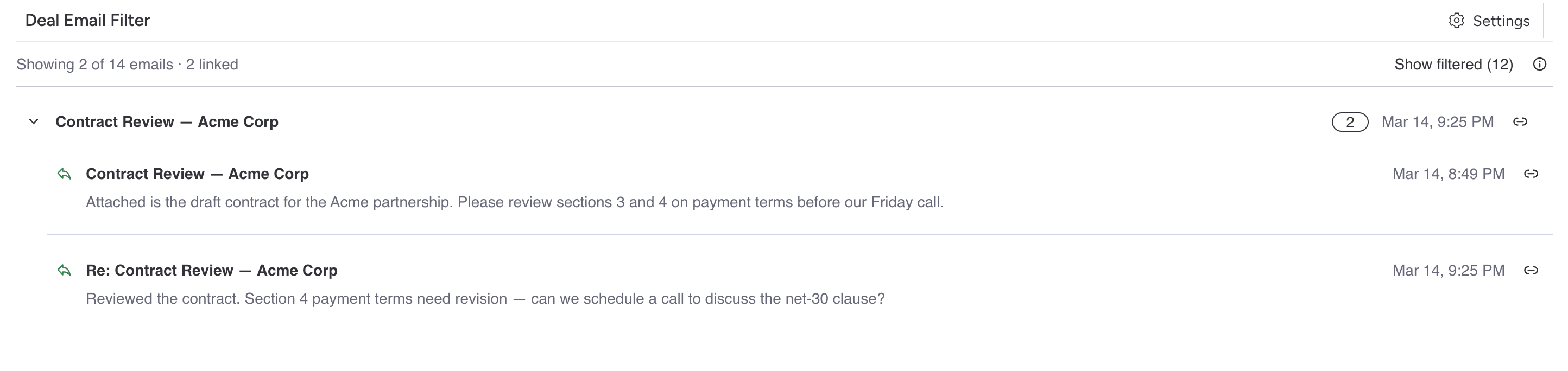
Deal Email Filter shows you only the emails that belong to the deal you are viewing, not every email from the same contact. It works only with the monday.com CRM product.
Requirements: Deal Email Filter works only with the monday.com CRM product. Install it on a monday account that uses CRM.
Install Deal Email Filter from the monday.com marketplace. Once installed, the app appears as a new tab on any item view in your CRM board. No configuration or setup is needed.
Navigate to any deal in your monday.com CRM board and open the item view.
The app appears as a tab alongside your other item views. Click it to see filtered emails.
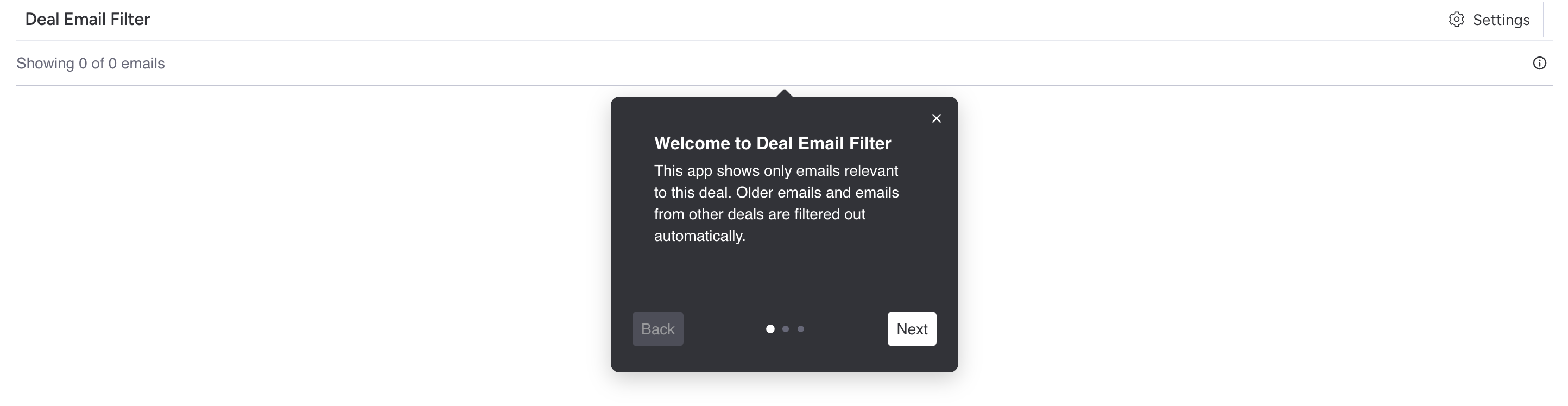
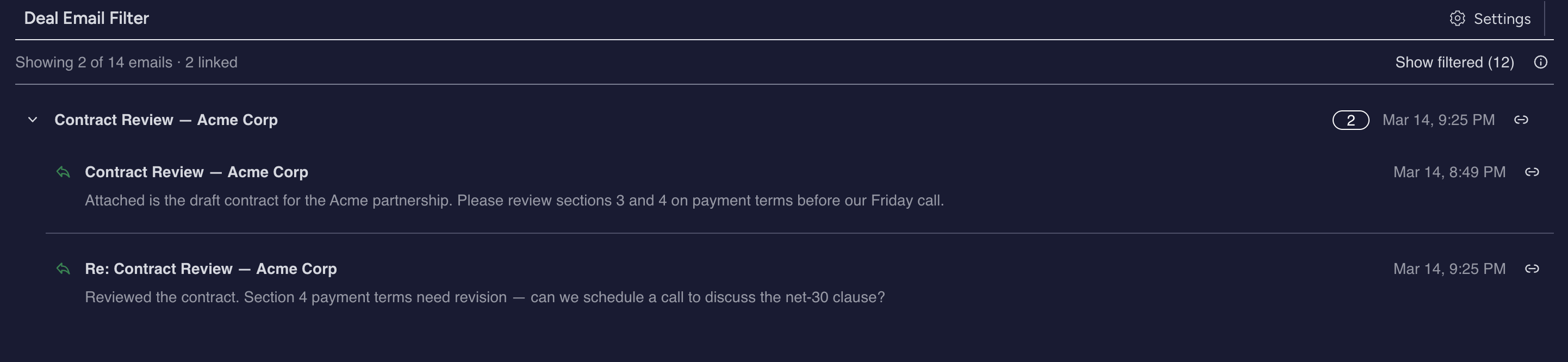
Emails are automatically filtered to show only conversations relevant to this deal. No configuration needed.
If an email should belong to this deal but was filtered out, click the link button to pin it. If an email is irrelevant, click hide to remove it from view.
When you link an email, all replies in the same thread automatically follow to this deal.
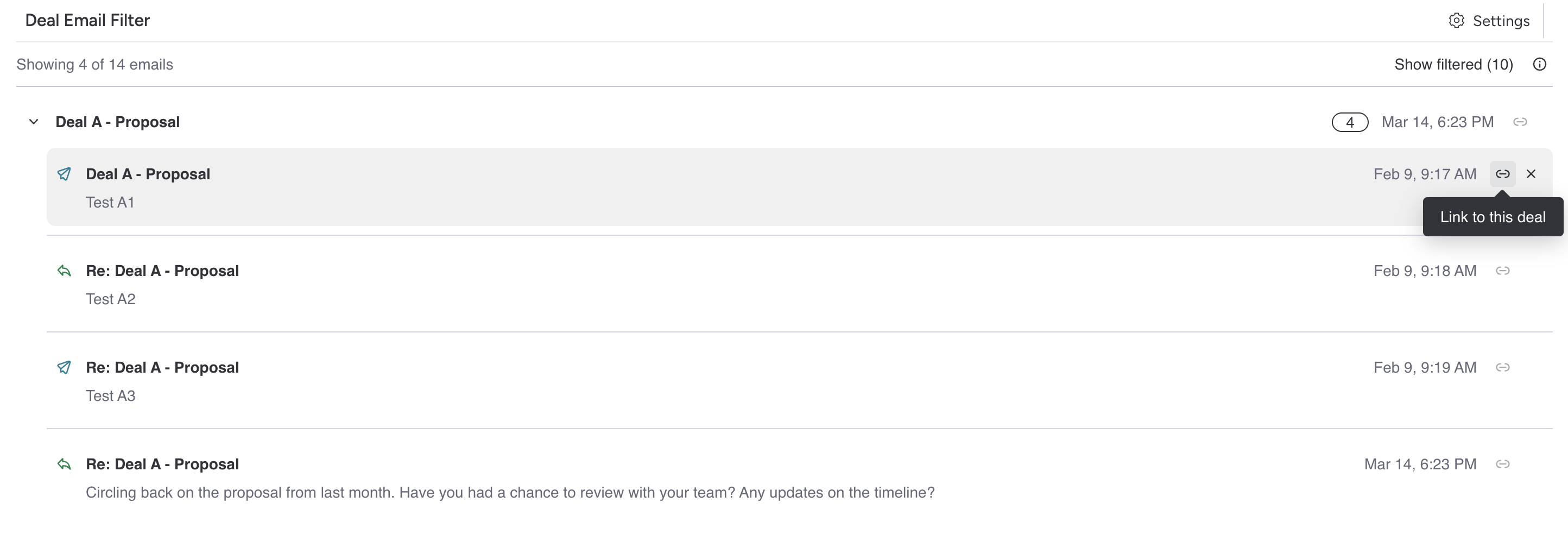
Email threads are grouped together. Click a thread to expand and see all messages in the conversation.

Deal Email Filter supports all three monday.com themes: light, dark, and night mode. The app automatically matches your monday.com theme setting.
If your account has view-only permissions, the app will display a notification explaining that email filtering requires member access. Contact your account administrator to upgrade your role.
Deal Email Filter requires a subscription after the free trial. You can manage your plan through monday.com's billing system. If your trial expires, the app will prompt you to choose a plan.
Does the app modify my emails?
No. The app only changes which emails are displayed. Your actual emails and the Emails & Activities widget are untouched.
What happens if I uninstall?
Your preferences are stored in monday.com's infrastructure and may persist. If you reinstall, your previous link and hide choices may still be available.
Can I use the app on multiple deals?
Yes. Each deal has its own separate set of linked and hidden emails. Changes on one deal do not affect other deals.
Why do I see emails from other deals?
monday.com's email system shows all emails from a contact, not just those for the current deal. Deal Email Filter solves this by showing only emails relevant to the deal you are viewing.
Need help? Contact support@nichcraft.com